Saturday, July 30, 2016

C# For Mac Using Xamarin Studio Part 2

C# For Mac Using Xamarin Studio Part 2

Here are some steps on how to get started on making Android apps:

  • When building an Android app for the first time, it will take a while since it will download some files, so be patient.
  • Go to Tools->SDK Manager and install your target Android version SDK. Remember, your target SDK version should be less than or equal to your Android device version.
  • Go to Project->App Options->Under Build->General choose your target Android version.
  • On your Android phone, enable Developer Mode and USB debugging.
  • Connect your device and Run-> Start Debugging. This will build the app and install on your device.


See ya!

Thursday, July 28, 2016

C# For Mac Using Xamarin Studio Part 1

C# For Mac Using Xamarin Studio Part 1

What is C#? 

C# is a programming language created by Microsoft in making cross platform apps.

What is the benefits of C#?

C# is multi-platform. It can be used on Windows and Macs and even on Linux.

What is Xamarin Studio?

Xamarin Studio is an Integrated Development Environment (IDE) for Apple macOS used in making apps for macOS, Android, iOS such as iPhone, iPad, etc. Xamarin is owned by Microsoft and is free to use.   

Where do I get Xamarin Studio?

Click on the link here: https://www.xamarin.com.

Where can I learn Xamarin Studio?

There are video tutorials to get you started: https://developer.xamarin.com.

Where can I learn C# language?

There are lots of video tutorials on Microsoft’s website called, “Microsoft Virtual Academy,” which is free to join: https://mva.microsoft.com.  

What’s Next?

I will be showing you how to build your first Android project and debug it on your Android phone.


See ya!

Friday, July 15, 2016

Unity 3D And Pokemon GO!

Unity 3D And Pokemon GO!

Who would’ve thought that augmented reality or “mixed” reality is a blockbuster hit? What’s even more interesting is the tool Niantic (the developer of Pokemon Go), used to create the world’s most popular mobile game in U.S. History (http://www.gamespot.com/articles/pokemon-go-becomes-most-popular-mobile-game-in-us-/1100-6441797/). Yup, it’s Unity 3D. Unity 3D is a game development software where you can make games for ALL platforms. This maybe for iOS, Android, Windows, VR, etc. You name it! What’s even cooler is that you can download and make games for FREE! (There is also a subscription service for additional features. Please check in the downloads section). And, there are lots of Unity game making tutorials that can be bought at incredibly low, low prices! 

I’ve already did the searching for you, just click here to purchase and learn about Unity 3D Game Development: 


Note: These tutorials will not teach you to develop Pokemon Go style games. It will teach you on how to build games by getting started and learning to use Unity 3D software. But, with a little imagination and some hard work, you might be able to create your own Pokemon Go games.

I also do recommend for you to wait a little while for someone to create video tutorials on how to create specifically for augmented reality games. Will keep you updated. Or, if you do know how please create videos for it. It’s a great opportunity!

Create your own video tutorials and publish here: 

See ya!

Wednesday, July 13, 2016

LineApp Walkie Talkie For Your Phone

LineApp Walkie Talkie App For Your Phone

What’s different about this is you can talk to others using a local WIFI router, even without internet connection and without using cellular data. I haven’t tested this thoroughly, but based on user feedback it works. I am reviewing this app not from my own experience but giving you an idea that this technology exist and is possible. You may also look for other kind of apps that work similarly by googling it. 


Check it out here on their website: https://www.lineapp.at.

Friday, July 8, 2016

Boom 2 Audio Enhancement App Sale!

Boom 2 Audio Enhancement App Sale!

I’m using the first version and it’s still really great! I am not an audiophile but I love music and the reason I recommend this thing because music sounded better. You’ll know what I’m talking about until you’ve tried it. Yes, kind of a little steep for the price? But, half discount is better than nothing, right? I am not affiliated with these guys, I just review apps for fun. Helping people discover apps that they will truly love. So, go ahead try it! It won’t bite.


Click the “View in the Mac App Store” to buy and check more details.

TextExpander App for Mac Now For Sale!

TextExpander App for Mac Now For Sale!

It’s just $19.98. You may already heard this popular app and at regular price this deal is worth the wait. TextExpander  will really help you save time typing things over and over on emails, letters, creating your own snippets and shortcuts to truly do things fast. 

In El Capitan, there is a similar capability built-in but very limited. Go to System Preferences->Keyboard under Text, you may add shortcuts to common phrases you use every time. When you type in a shortcut, it will expand to the phrase you assigned it in.

Now, TextExpander goes further by expanding paragraphs, not just short phrases. You may also add your email signature library and reuse it everywhere.


Tuesday, July 5, 2016

Ultimate PC Bundle Sale!

Ultimate PC Bundle Sale!

I know, I know this is not for the macOS, but you can install Windows on your Mac right? Using the free built-in Bootcamp for Mac, you can easily install and partition your Mac and run Windows 10 by choosing what to boot as your startup disk. So, you have the best of both worlds! Now, this deal is really good to have if you are a PC user. You might not need all of them, however you will enjoy some like the popular Scrivener for writers, CCleaner PRO for keeping your PC safe and private, Mind-mapping tool for brainstorming ideas and sharing them, Power productivity tool with PhraseExpander and more!


Wednesday, June 29, 2016

More Freebies?

More Freebies?

Almost all of the apps in the Apple App Store are free and I hate it. I would rather buy apps upfront than emptying my wallet for all of those “gems” and still not satisfied. Don’t get me wrong, some apps are legitimately free without being greedy. I am a developer myself and give apps for free without any catch (except for ads on some). You might ask that developers need to earn a profit for in-app purchases, and thus their business. As a developer that’s good but as a consumer that is greed. Therefore, it really depends. If you really, really like to support the developers and have tons of money then go ahead, make them happy. Free-to-play is awesome if you want to test their games or apps although I think they should have demo versions (oh, free versions are demo versions actually). And, there are gazillions of paid apps that you would want anyway, so why the hate? Sometimes, you need to be in their shoes in order to understand their situation, right? Creating apps is not an easy task. It takes a lot of your time and investment in order to create apps, and using apps without paying developers are just unfair and sad even they are responsible for driving sales for hardware manufacturers, which you buy. “Almost all of the apps in the Apple App Store are free and I hate it (but they love it).”

Monday, June 27, 2016

Ubisoft 30th Anniversary Free Games

Ubisoft 30th Anniversary Free Games

It’s Ubisoft’s 30th Anniversary and they are giving away seven free PC games for you to download and enjoy. For the month of June, you get Prince of Persia: The Sands of Time. Get the game NOW!


Saturday, June 25, 2016

Steam Games Summer Sale!

Steam Games Summer Sale!

Yup, it’s that time again. It’s Valve’s Steam Games Summer Sale! Get ridiculous discounts for old and new games for the old and new (no pun intended). I know you’ve been planning to buy that game a year ago when everything is not a picnic and very expensive. Now is the time to buy the games you’ve been waiting for all those summers. Being old is still FUN! (Any way you look at it). So, come on! Grab your games NOW! 

Of course, the link is here: http://store.steampowered.com.


Note: Refreshing deals until July 4th, 2016.

Disclaimer: I am not related to this person or company by any means.

Monday, June 20, 2016

Mac Tips Extended Part 2 Send Files from Mac to PC Using Bluetooth

Mac Tips Extended Part 2 Send Files from Mac to PC Using Bluetooth

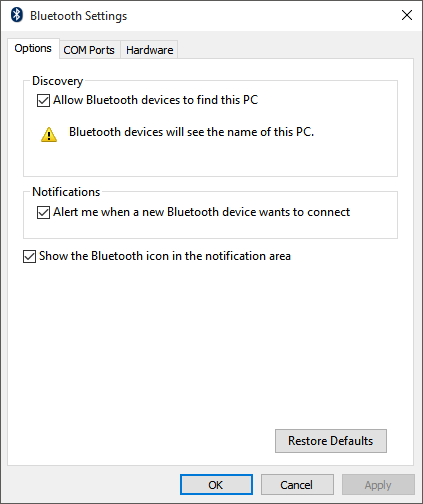
On PC:
  1. Right-click on Bluetooth icon->Settings.


    Bluetooth devices
  2. Check All Bluetooth devices to find this PC.


    Allow Bluetooth Devices to Find this PC

When sending files from Mac to PC:
  1. Right-click on Bluetooth icon->Receive a file.


    Receive File


    Waiting for Connection

From Mac:

  1. Send the file and choose the PC device.

Thursday, June 16, 2016

Mac Tips Extended Part 1

Mac Tips Extended Part 1

One great tip to make your Mac run faster is to remove or uninstall unneeded applications. Click the Apple logo on the upper-left of the screen, choose, “About this Mac” click the System Report button under Overview tab, then under Software, choose Applications. Here, you will see all the installed applications from Apple and other third-party developers. Sort the applications according to, “Obtained from” by clicking the column. You will see applications created by unknown developers. Usually, these are applications from Google Chrome which you added, and therefore safe to remove unused apps by opening Google Chrome and put, “chrome://apps/“ in the address bar and hit Enter. Right-click on the apps you don’t need and choose,” Remove from Chrome.”

You can also check those “unknown” apps by looking at the location upon clicking on it. Most probably, you don’t need most of them and therefore safe to delete by using the apps’ installer or googling it on how to uninstall it. But, be sure to check first.

Summary

Here, we showed you on how to improve your Mac’s performance by removing unused applications by using the “About this Mac” option.

If you want more tips on how to drastically improve your Mac’s performance, please check out my latest book at Amazon, which is on sale today! Thank You. ❤️📘😃

Mac Tips (Only $7.99)

by Fernando Jr. Cuevas 

Tuesday, June 14, 2016

Apple macOS Sierra Features

Apple macOS Sierra Features

Apple has just launched their new macOS at WWDC on Monday and there are some new features like the most convenient copy and paste from your iPhone to your Mac, unlock screen using your Apple watch or iPhone, multiple tabs that are native, iMessage that are full of emojis (which is a doozy), the all new Apple Music, storage cleanup, the obnoxious AI assistant Siri (which we love to try out immediately), and many more!

These features are added on top of El Capitan, and therefore all the things we use on our Mac everyday will still be there. Our workflow might change since the unveiling of Siri that makes our work more efficient and handle tasks much faster and be more productive. In short, we can do more since Siri will finally arrive for work.

Ah, and one more thing, I’ve just published my new ebook called, “Mac Tips” at Amazon. This book is different. It brings some unique features that are not usually taught in schools. It’s like a book about discovery and exploration in using your Mac. It also highlights apps that are essential to make you more like a super hero and do stuff faster and easier! There are so much things you can do with your Mac, and we just scratched the surface! 

Here is an excerpt:

Super Simple Way to Speed Up Your Internet

You can speed up your Internet browsing by using Google’s public DNS servers. What is DNS? The Domain Name System (DNS) protocol is an important part of the web's infrastructure, serving as the Internet's phone book: every time you visit a website, your computer performs a DNS lookup. Complex pages often require multiple DNS lookups before they start loading, so your computer may be performing hundreds of lookups a day. For more info, go to this link: https://developers.google.com/speed/public-dns/.
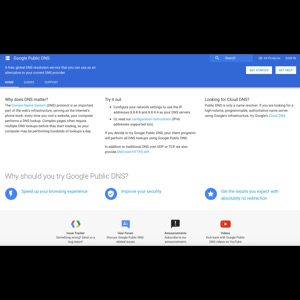

Google Public DNS Website

  1. Open System Preferences->Network->Advanced.
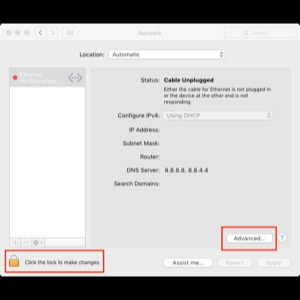

    Network Advanced Options
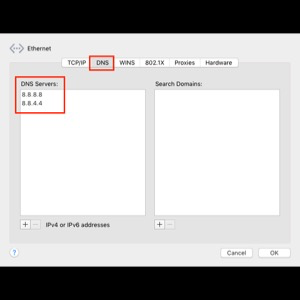
  2. Under DNS->DNS Servers, delete existing servers by clicking the minus (-) sign.
  3. Click the add (+) button and type: 8.8.8.8 and also add 8.8.4.4.
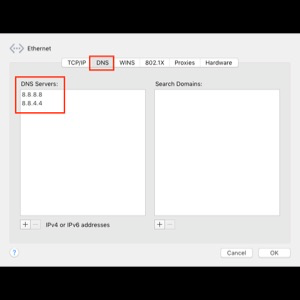

    Network DNS Servers

That’s it! Now, you have a faster internet and even more secure. Enjoy!

Summary

Is there a dead simple way to make your Internet browsing faster? Yes, by changing your DNS Servers in the Network preferences using Google public servers. It’s faster, and it’s safer!


Mac Tips (Sale Today! Only $2.99)

by Fernando Jr. Cuevas 

Thank You! 😃

Sunday, June 12, 2016

Mac Tips Youtube Videos PadBangers Part 3

Mac Tips Youtube Videos PadBangers Part 3

Here is another cool video on awesome Mac apps for better workflow:


I like the part about using the free Disk Utility to make password protected folders. Time Machine is also indispensable. He suggests using TotalFinder which cripples your Mac security that he cautioned. I would rather recommend Commander One Pro by Eltima Software, which is available without compromising your Mac security. Commander One Pro is found on the Mac App Store for a minimal fee. There is also a free version where you can try.

Although he mentioned about using his own scripts for converting music files, I haven’t checked his scripts so use with caution.


Another thing is I prefer to use Pixelmator rather than Affinity Photo but it just boils down to preference.

Overall, I found his tips very useful although some requires purchasing apps, it really is such a time saver and some are really high-quality stuff.

Enjoy!


Disclaimer: I am not related to this person or company who provided this free tutorial.

Monday, June 6, 2016

Mac Tips Youtube Videos 9 to 5 Part 2


Mac Tips Youtube Videos 9 to 5 Part 2


Here is another video to show some nifty tips on how to make your Mac more useable.


I love the part when you can minimize windows into its application icon. This removes clutter and make your Mac more manageable.

Another cool stuff is when you can access emojis on the menu bar. This is handy on social networks like Facebook or Twitter, and it’s more organized than the list from the Edit menu.

Folder shortcuts to the Sidebar is also a time saver and it’s awesome!

So, that’s it. I hope you enjoyed another great video and thanks to 9to5 Mac.

You can visit their website here: http://9to5mac.com.


About 9to5 Mac

We deliver breaking information in digestible format peppered with commentary, wit, and a deep understanding of the subject matter being discussed. It isn’t enough to just inform; our posts strive to be interesting and entertaining, complimented with compelling, high-quality images and video.


Disclaimer: I am not related to this person or company who provided this free tutorial.

Friday, June 3, 2016

Mac Tips Youtube Videos - How To Make Your Mac More Secure

Mac Tips Youtube Videos
How To Make Your Mac More Secure

My first Youtube video I would like to share to you is from, “Apple Made Easy.” 


This video is about on how to make your Mac more secure by adding passwords when you login, requiring passwords for purchases in Mac App Store and iTunes Store, making use of Safari more securely and more private.

She also taught on how to enable downloads from Mac App Store, and enabling your Firewall, which is essential. But, what I would like to add is blocking all incoming connections by:

  1. Open System Preferences.
  2. Click on the Security & Privacy icon->Firewall.
  3. Click on the padlock icon and enter your administrator username and password.
  4. Click on the Firewall Options.
  5. Check Block all incoming connections.
  6. Click "Ok."
  7. Then, click the padlock icon to lock.
The reason I mentioned this is for making your Mac more secure from hackers by enabling this option.

Note: Some sharing features will be blocked like File Sharing, Screen Sharing, etc. You have to uncheck this if you are going to use those features.


Apple Made Easy uploads weekly tutorials videos related to the Mac, iPhone, iPad and other Apple products.  If you have a comment or a question, feel free to post a comment or send me an email at letters@applemadeeasy.com.


Disclaimer: I am not related to this person or company who provided this free tutorial.

Friday, May 20, 2016

Sunday, May 15, 2016